Exporting Models
Export a registered Model to back it up, inspect its definitions, or move it to another Meshery Server. The export contains the model definition and, unless you leave them out, its components and relationships.
Export a model with Meshery CLI
You need mesheryctl installed and logged in to your Meshery Server.
Run:
mesheryctl model export <model-name>
By default, mesheryctl writes an OCI image with YAML definitions to the current directory. Change that with these flags:
| Flag | What it does |
|---|---|
-o, --output-type <oci|tar> | Package as an OCI image (oci, the default) or a compressed archive (tar). |
-t, --output-format <yaml|json> | Write the definitions as YAML (the default) or JSON. |
-l, --output-location <dir> | Write the file to this directory instead of the current one. |
--version <vX.Y.Z> | Export this version of the model instead of the latest. |
-c, --discard-components | Leave out the components. |
-r, --discard-relationships | Leave out the relationships. |
For example:
# OCI image with JSON definitions
mesheryctl model export istio-base -t json

# Compressed archive of version v1.20.0 in ./exports
mesheryctl model export istio-base -o tar --version v1.20.0 -l ./exports

# Only the model definition
mesheryctl model export istio-base --discard-components --discard-relationships
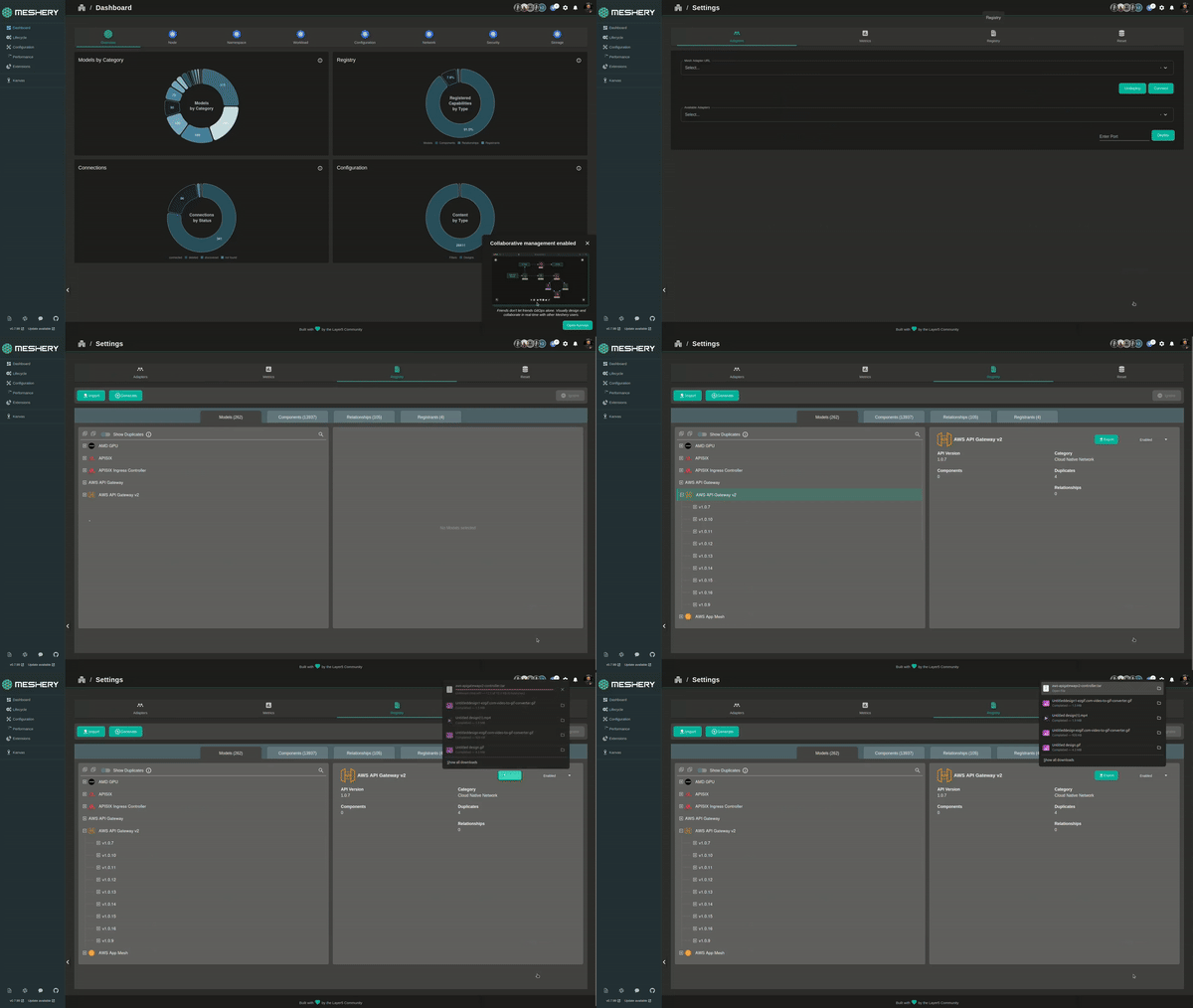
Export a model with Meshery UI
Open the Registry. Click your avatar in the top right and choose Registry, or go to Settings > Registry.

On the Models tab, select the model. To export a specific version, select that version.
Click Export. Meshery downloads the model as an OCI image.
Next steps
- Import the exported model into another Meshery Server. See Importing Models.
- Push the OCI image to a container registry. See Push or Pull a Model Image.