Managing Events with Notification Center
Meshery records an event for each activity that affects your designs and infrastructure, whether you started it or Meshery did on its own, such as a deployment, a validation, a relationship evaluation, or a MeshSync error. The Notification Center is where you review those events and act on them.
Open the Notification Center
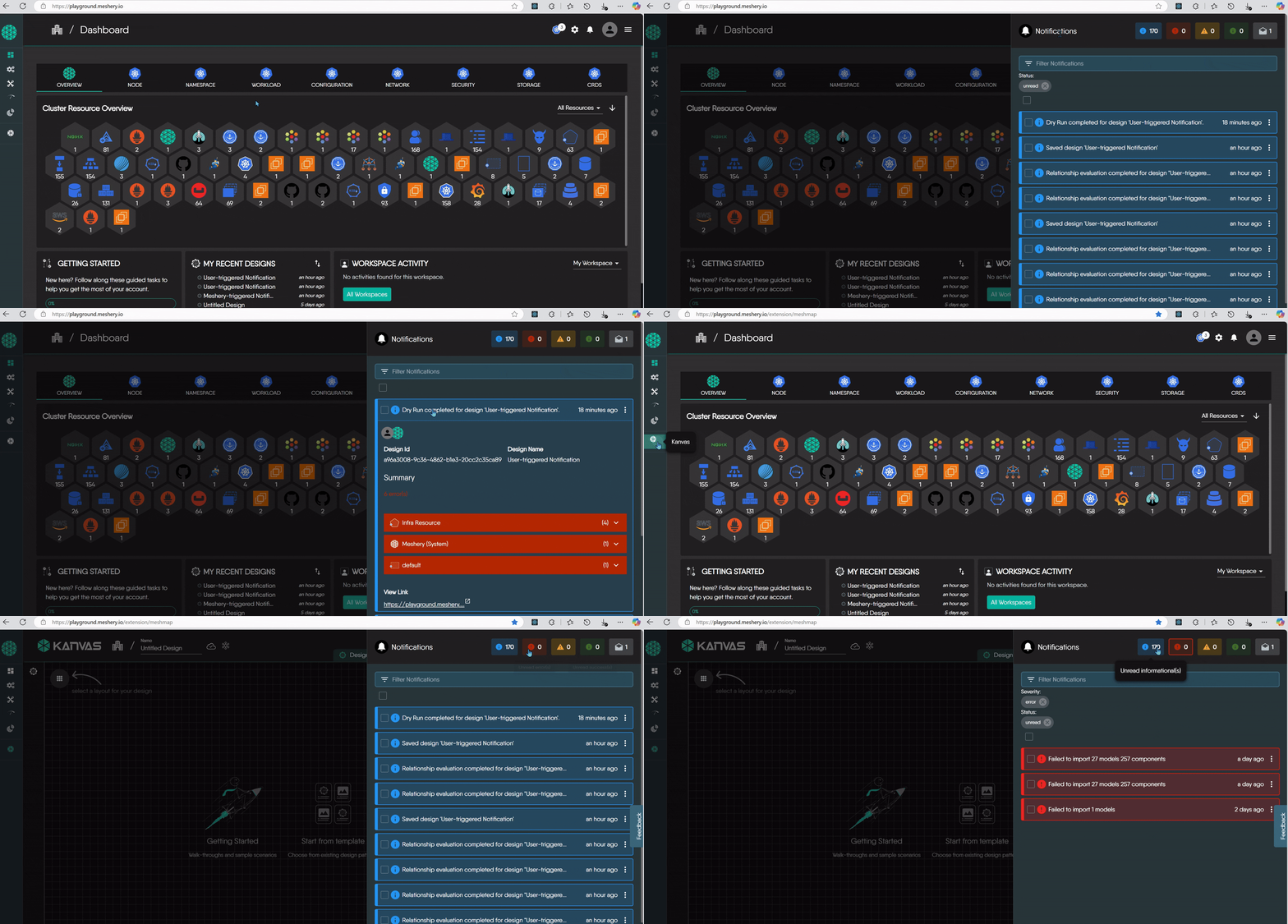
Click the bell icon in the header of Meshery UI. When you have unread errors, a red badge on the icon counts them. With no unread errors, a yellow badge counts unread warnings.
Read a notification
Each notification summarizes what happened. Depending on the event, it includes:
- The action performed, such as saving a design or running a dry run.
- The affected components, such as Deployments or MeshSync.
- Validation results or errors, such as invalid values or missing fields.
- Relationship updates, showing how components are linked.
- Links to the related design or to more detail.
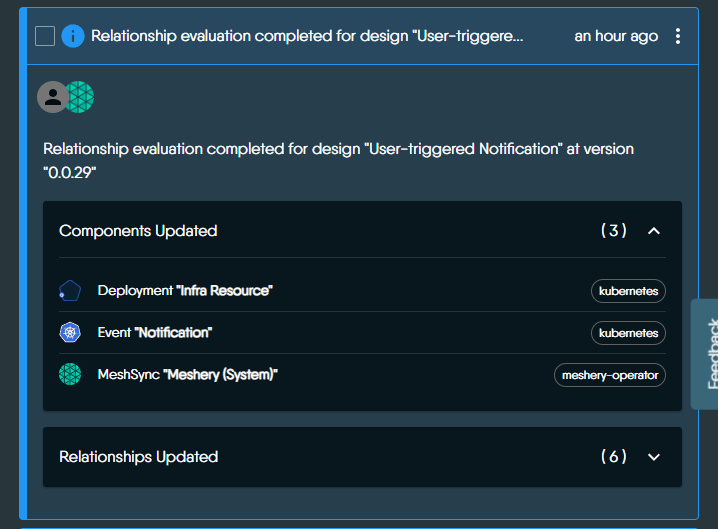
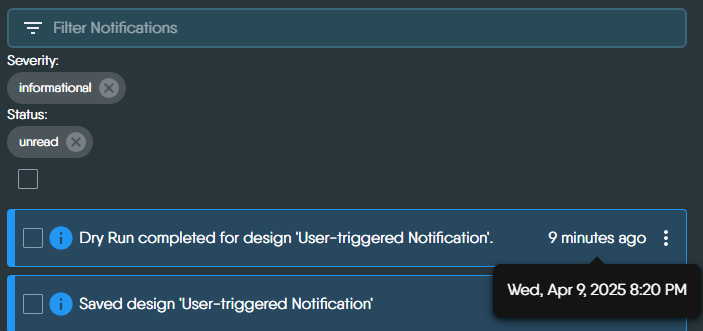
Expand a notification to see its full description. Meshery highlights critical, actionable events in red. Timestamps use your device’s time zone.
Find the notifications you need
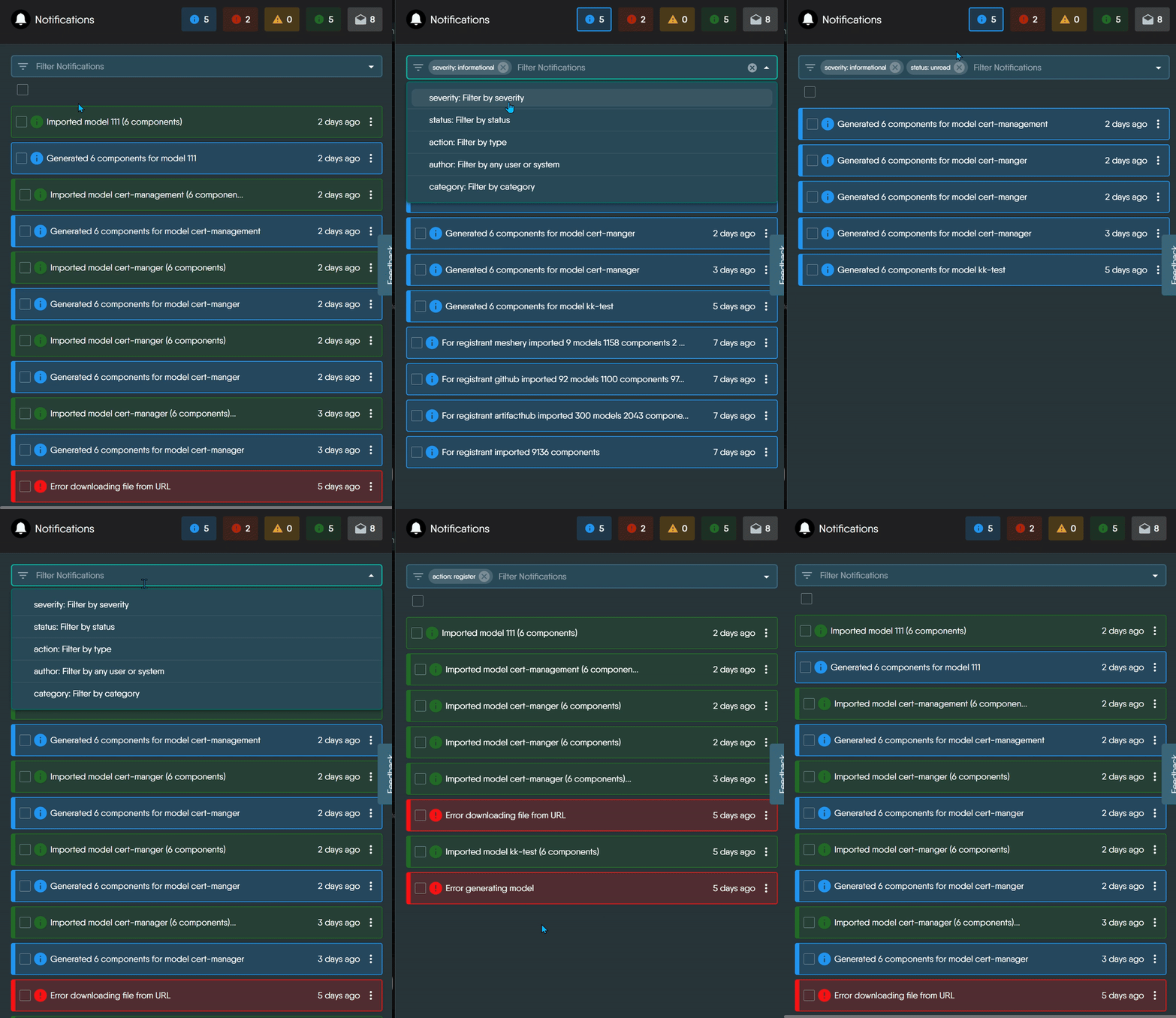
Type in Filter Notifications to search, or filter by severity, status, action, category, and author. Meshery builds the action, category, and author options from the events your server has received.
| Severity | Filter value | Use it for |
|---|---|---|
| Info | informational | General updates. |
| Success | success | Actions that completed. |
| Warning | warning | Potential issues. |
| Error | error | Failures that need your attention. |
| Status | Filter value | Meaning |
|---|---|---|
| Unread | unread | Notifications that are not marked as read. |
| Read | read | Notifications marked as read. Opening a notification does not mark it as read. |
Act on notifications
- Mark as read or unread: select notifications and click Mark selected notifications as read or Mark selected notifications as unread.
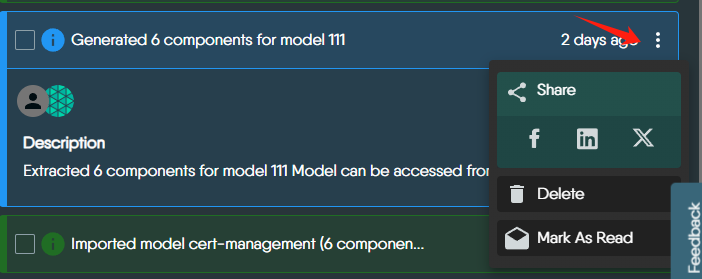
- Delete: select notifications and click Delete selected notifications, or delete a single one from its own menu.
- Share: open a notification’s share menu to send it to teammates or post it.
Who triggered a notification
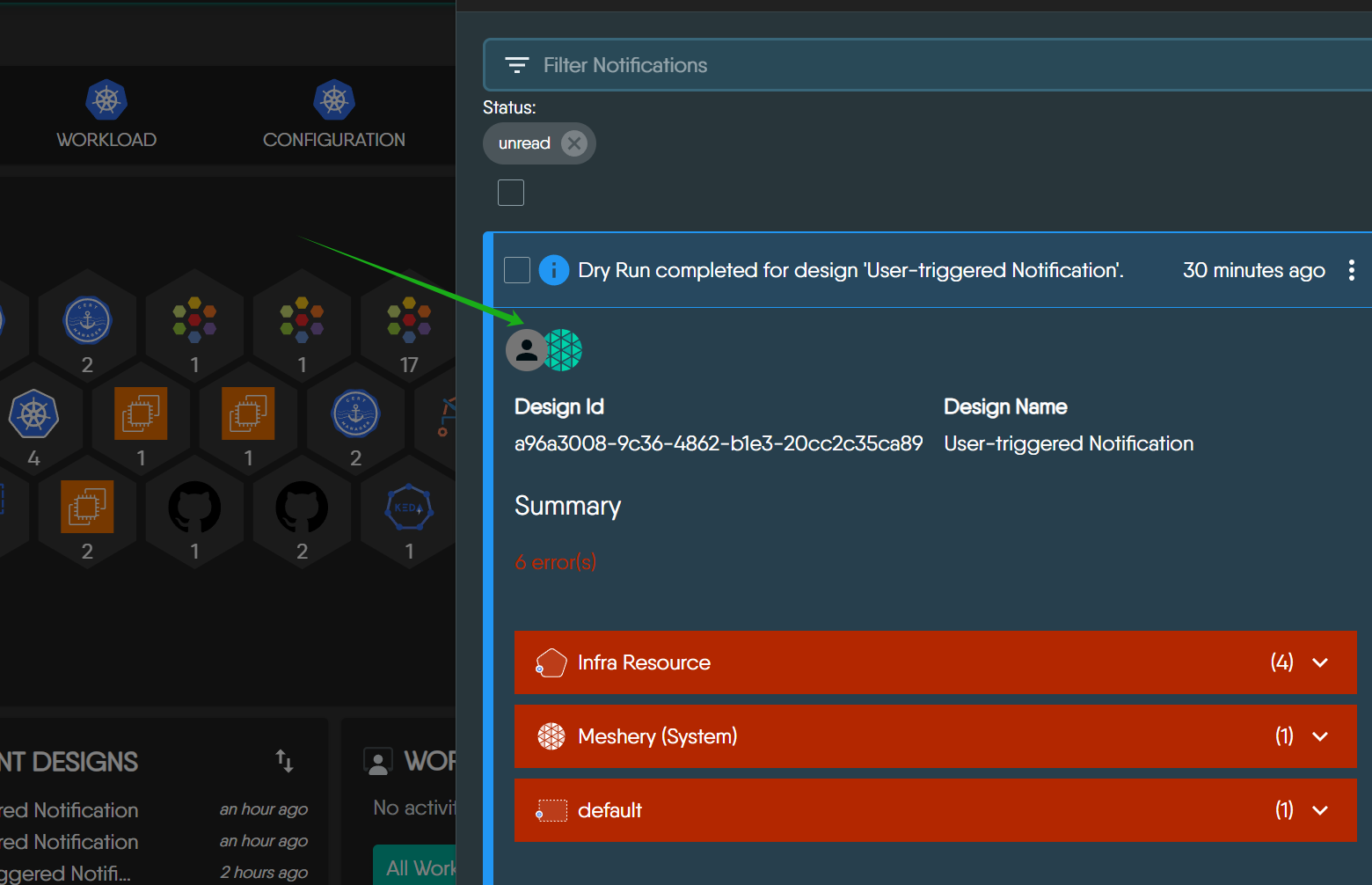
The avatar on a notification shows who triggered it.
| Icon Type | Meaning |
|---|---|
| Meshery logo only | System-triggered event - initiated automatically by Meshery (e.g., syncing errors, import failures). |
| User avatar + Meshery logo | User-triggered event - the user performed an action, and Meshery processed it (e.g., registering a Kubernetes context). |
| User avatar only (rare) | User-triggered event with no system action involved. |
Meshery shows the user’s avatar when the event carries a user ID and Meshery can look that user up, and the Meshery logo when the event carries a system ID.
Visual Representation of System/User-triggered Notifications
How long Meshery keeps notifications
Your provider decides how long notifications are retained. To clear notifications sooner, delete them.
For how the Notification Center is built, see the contributor guide.