Troubleshooting Meshery Installations
mesheryctl preflight checks
Before mesheryctl system start and other mesheryctl system commands deploy anything, they check that your environment is ready. For a Kubernetes context, mesheryctl connects to the cluster in your kubeconfig’s current context. To run the same checks yourself, run mesheryctl system check --preflight. See Running system checks.
Situation:
mesheryctlcannot create a Kubernetes client or query the Kubernetes API.Fix: Run
kubectl config current-contextandkubectl get podsto confirm that your kubeconfig points at a reachable cluster.Situation: Meshery Server fails to start with the error
key/value size is invalid.Fix: Meshery Server’s local database is corrupt. Remove the database file and its write-ahead log files so that Meshery Server recreates them, then start Meshery again. This deletes the data Meshery stores locally, but keeps your
mesheryctlcontexts in~/.meshery/config.yaml:DB_DIR="${USER_DATA_FOLDER:-$HOME/.meshery/config}" rm -f "$DB_DIR/mesherydb.sql" "$DB_DIR/mesherydb.sql-wal" "$DB_DIR/mesherydb.sql-shm"
Access Meshery UI on kind or Minikube
The Helm chart exposes Meshery Server through a LoadBalancer service by default. Minikube and kind clusters usually have no load balancer, so the service never gets an external address. Use one of these methods to reach Meshery UI:
Port-forward with mesheryctl. This works on any cluster:
mesheryctl system dashboard --port-forwardNote: The
--port-forwardflag is intended for use exclusively when Meshery is deployed in a Kubernetes cluster (platform: kubernetes).Port-forward with kubectl:
kubectl port-forward service/meshery 9081:9081 -n mesheryThen open
http://localhost:9081.Minikube tunnel. Run
minikube tunnelin a separate terminal to giveLoadBalancerservices an address. See Using minikube tunnel.MetalLB on Minikube. Run
minikube addons enable metallband configure an address range. See MetalLB installation.Cloud Provider KIND on kind. See LoadBalancer in kind.
Meshery Operator
Meshery Server deploys Meshery Operator into each Kubernetes cluster you connect, unless you turn that off.
Turn off Meshery Operator
Set the environment variable DISABLE_OPERATOR=true on Meshery Server to stop it from deploying Meshery Operator into any cluster. Set it in one of these ways:
On Docker with
mesheryctl, add the variable to theenvsection of your context in~/.meshery/config.yaml, then runmesheryctl system start.mesheryctluppercases the key and passes it to the Meshery Server container:contexts: local: env: disable_operator: trueWhen you run Meshery Server from source, run
make server-without-operatorinstead ofmake server.
For per-cluster control and the other Operator settings, see Configuring Meshery Operator, MeshSync, and Broker.
Meshery Broker
Meshery Broker is a NATS server. Current Meshery Operator releases run it as the meshery-nats StatefulSet; older releases named it meshery-broker. A healthy Broker logs lines like these:
$ kubectl logs -n meshery meshery-nats-0 -c nats
[7] [INF] Starting nats-server
[7] [INF] Starting http monitor on 0.0.0.0:8222
[7] [INF] Listening for client connections on 0.0.0.0:4222
[7] [INF] Server is ready
To see which clients, including Meshery Server, are subscribed, query the Broker’s HTTP monitoring port, 8222. For other Broker and MeshSync problems, see Troubleshooting Meshery Operator, MeshSync, and Broker.
Meshery can’t connect to Kubernetes
If Meshery doesn’t detect your cluster even after you import your kubeconfig, check two things:
Your kubeconfig has the context you expect:
kubectl config get-contextsIf you use Docker Desktop’s Kubernetes, switch to its context:
kubectl config use-context docker-desktopMeshery Server can reach the cluster’s API server from the host and network it runs on. This matters most when Meshery runs outside the cluster, for example in Docker. A kubeconfig that points at
127.0.0.1works from your shell but not from inside the Meshery container.
See Registering a Connection for how to import a kubeconfig.
Meshery remote providers
After you install Meshery, choose the Meshery remote provider in Meshery UI or with mesheryctl system login:
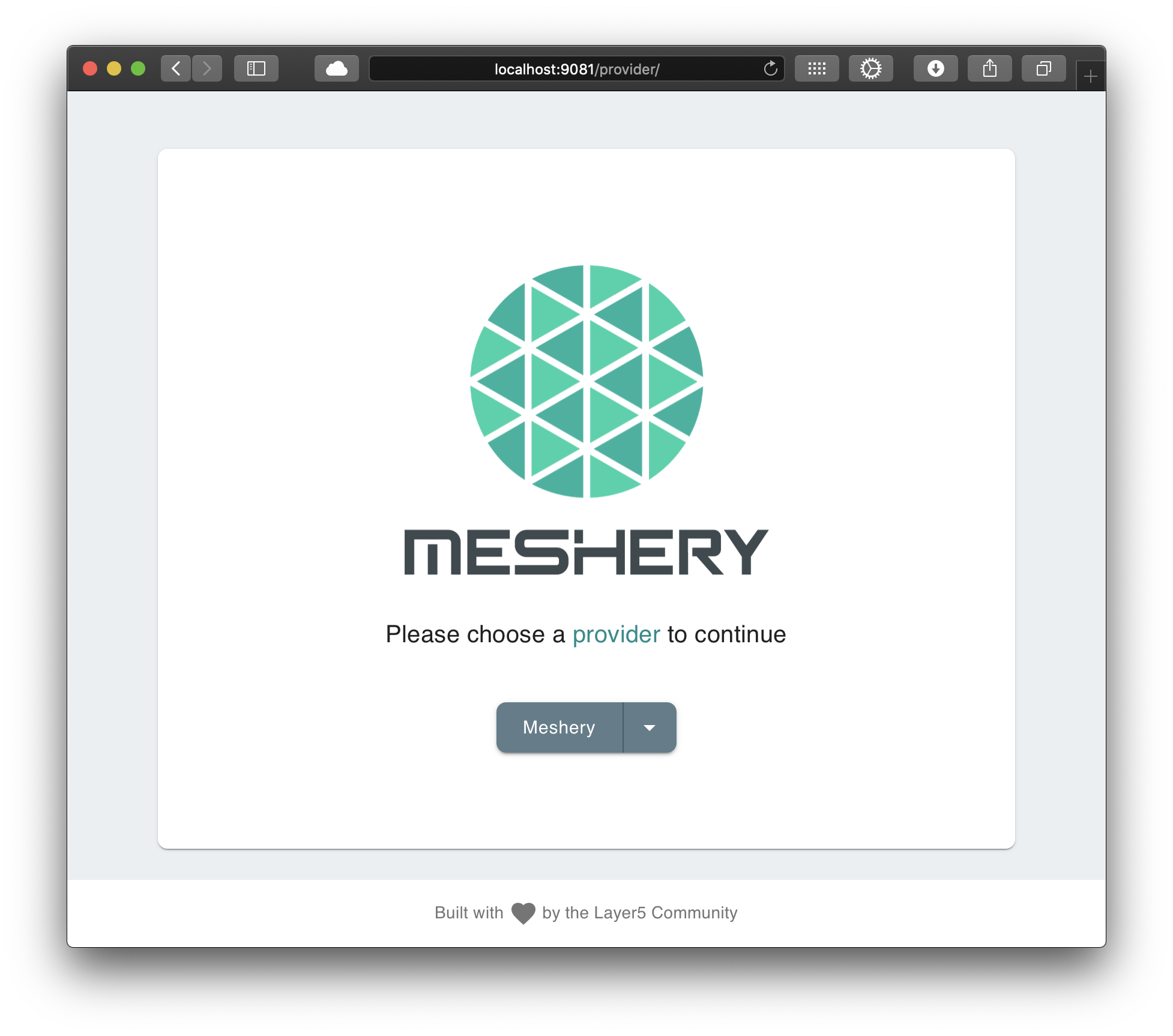
$ mesheryctl system login
Use the arrow keys to navigate: ↓ ↑ → ←
? Select a Provider:
  ▸ Meshery
    Local
If the Meshery provider is missing or fails when you pick it, run mesheryctl system logs and look for errors that reach cloud.meshery.io. Meshery Server must be able to reach https://cloud.meshery.io to load the Meshery provider’s capabilities.
For more about providers, see Extensibility: Providers.