# Minikube

> Install Meshery on Minikube. Deploy Meshery in Minikube in-cluster or outside of Minikube out-of-cluster.

---

LLMS index: [llms.txt](/llms.txt)

---

<h1>Quick Start with Minikube <img src="images/minikube.png" style="width:35px;height:35px;" /></h1>

Meshery can manage your Minikube clusters, and it is especially useful for multi-cluster management and deployments.

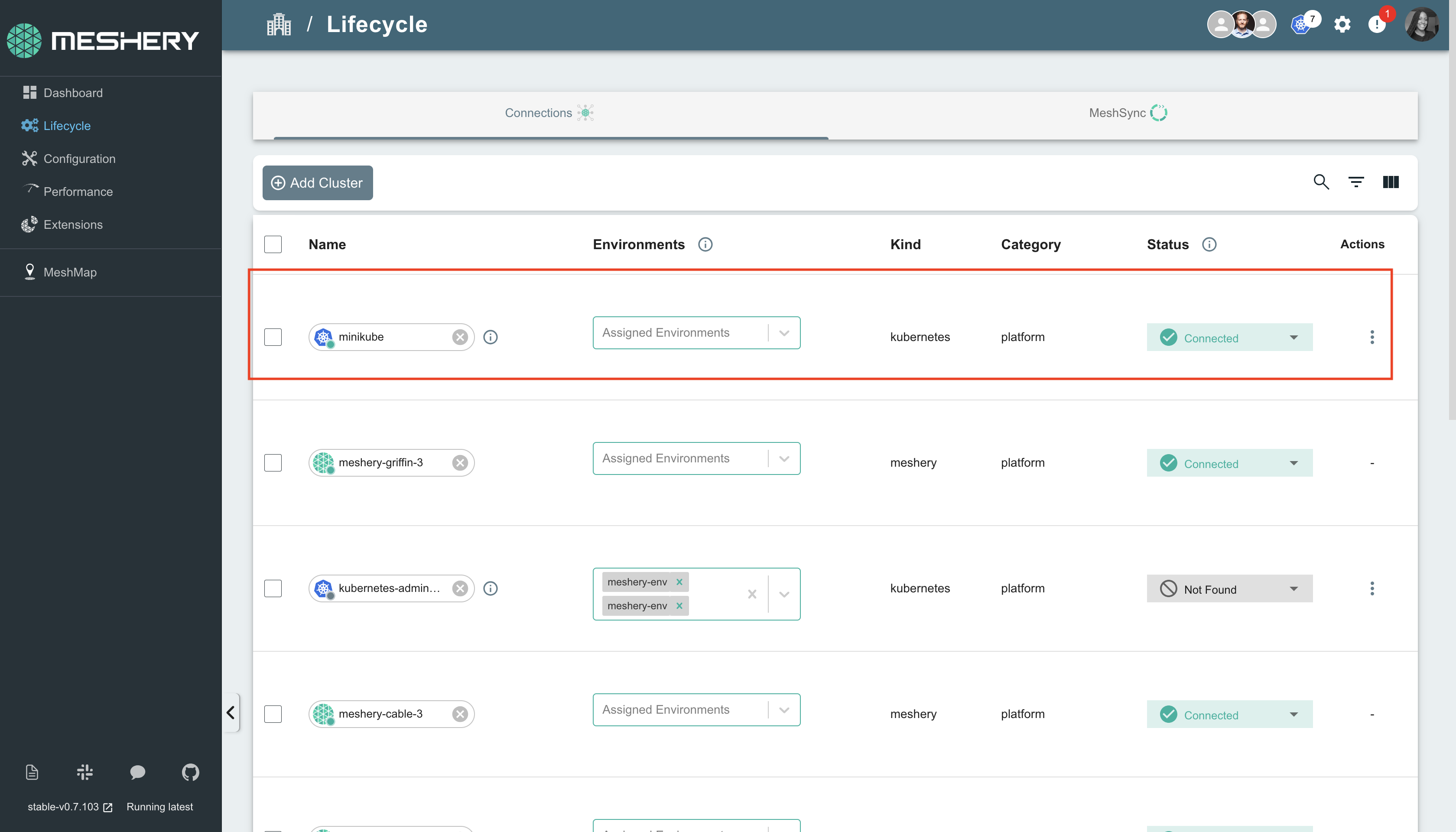
To manage your Minikube cluster, Meshery Server must discover it and add it as a Kubernetes connection.

Once your cluster is a connection, you can use Meshery to deploy your [Meshery Designs](https://cloud.meshery.io/academy/learning-paths/11111111-1111-1111-1111-111111111111/mastering-meshery/introduction-to-meshery?chapter=creating-designs) to it. To learn more, see [Deploying Meshery Designs](https://cloud.meshery.io/academy/learning-paths/11111111-1111-1111-1111-111111111111/mastering-meshery/introduction-to-meshery?chapter=deploying-meshery-designs).

**There are two ways to create this connection:**

1. Deploy Meshery in Minikube [(in-cluster)](#in-cluster-installation).
2. Deploy Meshery with Docker and connect it to Minikube [(out-of-cluster)](#out-of-cluster-installation).

**_Note: We recommend installing Meshery in your Minikube clusters._**

<div class="prereqs"><p><strong style="font-size: 20px;">Prerequisites</strong> </p> 
  <ol>
    <li>Install the Meshery command-line client, <a href="/installation/mesheryctl/" class="meshery-light">mesheryctl</a>.</li>
    <li>Install <a href="https://kubernetes.io/docs/tasks/tools/">kubectl</a> on your local machine.</li>
    <li>Install <a href="https://minikube.sigs.k8s.io/docs/start/?arch=%2Fmacos%2Fx86-64%2Fstable%2Fbinary+download"> Minikube</a> on your local machine.</li>
    <li>Install <a href="https://helm.sh/docs/intro/install/">Helm</a>.</li>
  </ol>
</div>

Also see: [Install Meshery on Kubernetes](/installation/kubernetes/)

## Available Deployment Methods

- [In-cluster Installation](#in-cluster-installation)
  - [Installation: Install Meshery on Kubernetes Using `mesheryctl`](#installation-install-meshery-on-kubernetes-using-mesheryctl)
  - [Installation: Using Helm](#installation-using-helm)
- [Out-of-cluster Installation](#out-of-cluster-installation)
  - [Installation: Install Meshery on Docker](#installation-install-meshery-on-docker)
    - [Minikube Docker Driver Users](#minikube-docker-driver-users)
      - [Next Step: Update the Kubernetes API Server Address for Meshery Access](#next-step-update-the-kubernetes-api-server-address-for-meshery-access)
- [Uploading Configuration File in the Meshery Web UI](#uploading-configuration-file-in-the-meshery-web-ui)
      - [Troubleshooting Meshery Installation](#troubleshooting-meshery-installation)
- [Post-Installation Steps](#post-installation-steps)
  
## Preflight Checks

Before you deploy Meshery on Minikube, prepare your environment.

### 1. Preflight: Cluster Connectivity

Start Minikube if it is not already running:


<pre class="codeblock-pre">
	<div class="codeblock">
		<code class="clipboardjs">minikube start</code>
	</div>
</pre>


Check the status of your Minikube cluster:


<pre class="codeblock-pre">
	<div class="codeblock">
		<code class="clipboardjs">minikube status</code>
	</div>
</pre>


Verify that your current context is `minikube`:


<pre class="codeblock-pre">
	<div class="codeblock">
		<code class="clipboardjs">kubectl config current-context</code>
	</div>
</pre>


### 2. Preflight: Meshery Authentication

Commands such as `mesheryctl connection create` call Meshery Server's API, so they need a running Meshery Server and a signed-in session. Do not sign in yet. The out-of-cluster steps below tell you to run `mesheryctl system login` after Meshery starts. See [Authenticate with Meshery via CLI](/guides/mesheryctl/authenticate-with-meshery-via-cli/).

# In-cluster Installation

## Installation: Install Meshery on Kubernetes Using `mesheryctl`

To install Meshery inside your Minikube cluster, run:


<pre class="codeblock-pre">
	<div class="codeblock">
		<code class="clipboardjs">mesheryctl system start -p kubernetes</code>
	</div>
</pre>

This command deploys the Meshery Helm chart into the `meshery` namespace.

To verify the deployment, run:


<pre class="codeblock-pre">
	<div class="codeblock">
		<code class="clipboardjs">helm list -A -n meshery</code>
	</div>
</pre>

After deployment, reach Meshery UI through port forwarding:


<pre class="codeblock-pre">
	<div class="codeblock">
		<code class="clipboardjs">mesheryctl system dashboard --port-forward</code>
	</div>
</pre>

For details, see the [port-forwarding](/reference/mesheryctl/system/dashboard/) guide.

Meshery Server running in the cluster connects to it automatically. If the connection does not appear, sign in and create it yourself:


<pre class="codeblock-pre">
	<div class="codeblock">
		<code class="clipboardjs">mesheryctl connection create --type minikube</code>
	</div>
</pre>


`mesheryctl connection create --type minikube` flattens your kubeconfig (`~/.kube/config`), writes it to `~/.meshery/kubeconfig.yaml`, and uploads it to Meshery Server. It replaces the deprecated `mesheryctl system config minikube`.

<a href="images/minikube-upload.png"><img alt="Minikube KubeConfig Upload" style="width:500px;height:auto;" src="images/minikube-upload.png" /></a>

## Installation: Using Helm

You can also deploy Meshery directly with the Helm CLI. See the [Helm Installation](/installation/kubernetes/helm/) guide.

# Out-of-cluster Installation

To install Meshery on Docker (out-of-cluster) and connect it to your Minikube cluster, follow these steps.

## Installation: Install Meshery on Docker

Start Meshery on Docker:


<pre class="codeblock-pre">
	<div class="codeblock">
		<code class="clipboardjs">mesheryctl system start -p docker</code>
	</div>
</pre>

This command starts Meshery in Docker containers. To verify that Meshery is running, run:


<pre class="codeblock-pre">
	<div class="codeblock">
		<code class="clipboardjs">docker ps</code>
	</div>
</pre>


Meshery UI is available on your local machine at `http://localhost:9081`.

Sign in with `mesheryctl system login`, then connect Meshery to your Minikube cluster. If you use the Docker driver, complete the steps in [Minikube Docker Driver Users](#minikube-docker-driver-users) first.


<pre class="codeblock-pre">
	<div class="codeblock">
		<code class="clipboardjs">mesheryctl connection create --type minikube</code>
	</div>
</pre>


### Minikube Docker Driver Users

If you run Minikube with the [Docker driver](https://minikube.sigs.k8s.io/docs/drivers/docker/), both Minikube and Meshery run in Docker containers, and you need a few extra steps so that Meshery can reach your cluster. First, put the Meshery and Minikube containers on the same Docker networks:

<pre class="codeblock-pre"><div class="codeblock">
 <div class="clipboardjs">docker network connect bridge meshery-meshery-1</div></div>
</pre>

<pre class="codeblock-pre"><div class="codeblock">
 <div class="clipboardjs">docker network connect minikube meshery-meshery-1</div></div>
</pre>

Next, update the Kubernetes API server address in your kubeconfig before you run `mesheryctl connection create --type minikube`, as described below.

#### Next Step: Update the Kubernetes API Server Address for Meshery Access

Because both Meshery and Minikube run in containers, the Meshery container cannot use the `localhost` address that Docker forwards the API server port to. Change the API server address in your kubeconfig to Minikube's own IP address instead.

To get the Minikube IP, run `minikube ip`. The API server listens on port `8443` inside the Minikube container by default.

Open your kubeconfig (`~/.kube/config`) in an editor and change the `server` field of the `minikube` cluster entry:


<pre class="codeblock-pre">
	<div class="codeblock">
		<code class="clipboardjs">server: https://{minikubeIP}:8443</code>
	</div>
</pre>


Then connect Meshery to your cluster:


<pre class="codeblock-pre">
	<div class="codeblock">
		<code class="clipboardjs">mesheryctl connection create --type minikube</code>
	</div>
</pre>


**Note**: Instead of running `mesheryctl connection create`, you can upload your kubeconfig in Meshery UI, as described next.

# Uploading Configuration File in the Meshery Web UI

**Note**: Meshery can connect to your Minikube cluster only when Meshery itself runs locally, on Kubernetes or Docker. The hosted [Meshery Playground](https://playground.meshery.io/) cannot reach a cluster on your machine.

**To upload your kubeconfig after you start Meshery locally**:

1. In the Meshery UI, navigate to **Lifecycle** from the menu on the left.
2. Select **Connections**.
3. Click **Create Connection** and choose **Kubernetes**.
4. In the **Import Kubeconfig** step, upload your kubeconfig file and select the contexts to import.
5. Review the import and confirm it.

For details, see [Registering a Connection](/guides/infrastructure-management/registering-a-connection/).

**Note**: If you get a connection refused error when you upload your kubeconfig, change your cluster's server URL to Minikube's external API address, as described in [Minikube Docker Driver Users](#minikube-docker-driver-users).

## Troubleshooting Meshery Installation

If you run into problems during installation, see [Troubleshooting Meshery Installations](/guides/troubleshooting/installation/#setting-up-meshery-using-kind-or-minikube).

# Post-Installation Steps

Verify the health of your Meshery deployment with <a href='/reference/mesheryctl/system/check/'>mesheryctl system check</a>.


<h2>Accessing Meshery UI</h2>


<p>Once Meshery is running, <code>mesheryctl system start</code> opens Meshery UI in your default browser. On Docker, Meshery UI listens at <a href="http://localhost:9081">http://localhost:9081</a> by default. On Kubernetes, <code>mesheryctl</code> opens the address of the <code>meshery</code> service in the <code>meshery</code> namespace, which the Helm chart creates as a <code>LoadBalancer</code> service on port 9081.</p>

<p>To open Meshery UI in your default browser at any time, run:</p>

<pre class="codeblock-pre" style="font-size: 1.75rem !important;">
<div class="codeblock">
<code class="clipboardjs">mesheryctl system dashboard</code>
</div>
</pre>

<p>If your cluster does not give the <code>meshery</code> service a reachable address, forward a local port to Meshery instead. By default, <code>mesheryctl</code> listens on local port 9081; use <code>-p</code> to choose another port.</p>

<pre class="codeblock-pre" style="font-size: 1.75rem !important;">
<div class="codeblock">
<code class="clipboardjs">mesheryctl system dashboard --port-forward</code>
</div>
</pre>

<p>You can also port-forward with <code>kubectl</code>:</p>

<pre class="codeblock-pre" style="font-size: 1.75rem !important;">
<div class="codeblock">
<code class="clipboardjs">kubectl port-forward svc/meshery 9081:9081 --namespace meshery</code>
</div>
</pre>

<h4>Verify Kubernetes Connection</h4>

Whichever way you installed Meshery, verify that Meshery is connected to your cluster:

<ol>
<li>In the Meshery UI, navigate to <strong>Lifecycle</strong> from the menu on the left.</li>
<li>Select <strong>Connections</strong>.</li>
<li>Ensure that your cluster appears in the list of connections and is marked as <code>Connected</code>.</li>
<li>Click the cluster name to run a connectivity test and confirm that Meshery can reach your cluster.</li>
</ol>

<details>
<summary>Customizing Your Meshery Provider Callback URL</summary>

<p>
  You can customize the callback URL that your <a href="/reference/extensibility/providers/">Meshery Provider</a> redirects to after sign-in. This helps when Meshery runs behind several layers of networking infrastructure.
</p>

<p>
  For production deployments, we recommend that you expose Meshery UI through a reverse proxy or a load balancer. A custom callback URL makes sure that sign-in completes even when requests pass through several routing layers.
</p>

<p>
  <b>Note</b>: For production deployments, use a Remote Provider so that you control which identity providers can sign users in. Learn more about this in the <a href="/reference/extensibility/providers/">Extensibility: Providers</a> guide.
</p>

<p>
  To set a custom callback URL, set the <code>MESHERY_SERVER_CALLBACK_URL</code> environment variable when you start Meshery:
</p>

<pre class="codeblock-pre" style="font-size: 1.75rem !important;">
<div class="codeblock">
<code class="clipboardjs">MESHERY_SERVER_CALLBACK_URL=https://custom-host mesheryctl system start</code>
</div>
</pre>

<p>
  On Kubernetes, Meshery UI is then available at the <code>EXTERNAL-IP</code> of the <code>meshery</code> service. Run <code>kubectl get svc meshery -n meshery</code> to find it.
</p>

</details>


<div class="related-discussions">
  <h3>Recent Discussions with "meshery" Tag</h3><ul><li>
          <a href="https://discuss.meshery.io/t/looking-for-a-meshmate-seeking-an-experienced-meshery-contributor-as-a-guide/8166" target="_blank" rel="noopener noreferrer">
            Looking for a MeshMate: Seeking an Experienced Meshery Contributor as a Guide
          </a>
        </li><li>
          <a href="https://discuss.meshery.io/t/request-to-reactivate-my-slack-account/8168" target="_blank" rel="noopener noreferrer">
            Request to Reactivate My Slack Account
          </a>
        </li><li>
          <a href="https://discuss.meshery.io/t/looking-for-a-meshmate-frontend-backend-cloud-native-development/8161" target="_blank" rel="noopener noreferrer">
            Looking for a MeshMate — Frontend, Backend &amp; Cloud-Native Development
          </a>
        </li><li>
          <a href="https://discuss.meshery.io/t/request-for-a-meshmate-active-meshery-contributor/8158" target="_blank" rel="noopener noreferrer">
            Request for a MeshMate — Active Meshery Contributor
          </a>
        </li><li>
          <a href="https://discuss.meshery.io/t/bug-new-catalog-publish-request-email-renders-with-oversized-social-icons-and-squashed-content-on-mobile/8138" target="_blank" rel="noopener noreferrer">
            [Bug] &#34;New Catalog publish request&#34; email renders with oversized social icons and squashed content on mobile
          </a>
        </li><li>
          <a href="https://discuss.meshery.io/t/how-to-present-an-issue-pr-in-a-development-meeting-feedback-wanted/8107" target="_blank" rel="noopener noreferrer">
            How to Present an Issue/PR in a Development Meeting: feedback wanted
          </a>
        </li><li>
          <a href="https://discuss.meshery.io/t/newbie-here-excited-to-join/8052" target="_blank" rel="noopener noreferrer">
            Newbie here -- Excited to join
          </a>
        </li><li>
          <a href="https://discuss.meshery.io/t/play-meshery-io-is-down/8045" target="_blank" rel="noopener noreferrer">
            play.meshery.io is DOWN
          </a>
        </li></ul><p>
    <a href="https://discuss.meshery.io/tag/meshery" target="_blank" rel="noopener noreferrer">
      View all discussions tagged with <code>meshery</code>
    </a>
  </p>
</div>